Portrait Illustrator Maker is actually an online application which lets you create your own cartoon character and lets you download your photo and use it as your cartoon avatar on your blog.
A small preview image shows the live preview of the cartoon character that you can customize according to your preferences, from hair to skin color, eyes, lips and many more....http://illustmaker.abi-station.com/index_en.shtml
{ The new official tutorial at PayPal, is quite misleading as We were unable to follow it and add the PayPal button on our blog because there is not donate option in dropdown menu }
Using the Button Creation Tool for a Basic Donate Button
To use the button creation tool for a basic Donate button:
Under the Selling Preferences heading, click the My Saved Buttons link.
The My Saved Buttons page opens.
In the Related Items box on the right, click the Create new button link.
The Create PayPal payment button page opens.
In the Accept payments for dropdown menu, select “Donations.” { couldn't find this option even after searching for days }
(Optional) In the Organization name/service text box, enter the purpose for the donation or the name of your organization. If you do not enter anything in this field, your donors can complete this field during checkout.
Scroll to the bottom of the page, and click the Create Button button.
The You are viewing your button code page opens.
Click the Select Code button on the Websites tab to select all of the generated HTML code.
Copy the text that you selected to the clipboard, by:
Pressing Ctrl+C.
– or –
Right-clicking your mouse, and selecting Copy.
In your web editing tool, open the webpage where you want the button.
IMPORTANT:
Be sure that your tool is ready for you to paste HTML code, such as by switching to an HTML view from a design view of your webpage.
Paste the text that you copied from the clipboard onto your webpage where you want the button to appear, by:
Pressing Ctrl+V.
– or –
Right-clicking your mouse, and selecting Paste.
Creating Donate Buttons Before You Create Your PayPal Account
You can create basic Donate buttons, add them to your website, and begin accepting contributions before you sign up for your PayPal account. Read the following topics to learn more about creating Donate buttons before you create your PayPal account.
Creating a Basic Donate Button Without a PayPal Account
NOTE:
You cannot create payment buttons without a PayPal account if JavaScript is disabled in your browser.
Click the Business tab.
Click Accept Credit Cards on a Website.
Under the PayPal Payments Standard heading, click the Select button.
A page that describes PayPal Payments Standard opens.
Click the Try it now button.
The Create PayPal payment button page opens.
In the Accept payments for dropdown menu, select “Donations.”
Enter the payment details for your Donate button.
Organization name/service – Enter the purpose for the donation or the name of your organization. If you do not enter anything in this field, your donors can complete this field during checkout.
Email address to receive payments– Enter the email address that you will use when you sign up for your PayPal account.
Scroll to the bottom of the page, and click the Create Button button.
The You've created your button page opens.
Click the Select Code button on the Websites tab to select all of the generated HTML code.
Do one of the following to copy the selected text to the clipboard:
For Windows and Mac, right-click on the code, and then select Copy.
For Windows, press Ctrl+C.
For Mac, press CMD+C.
In your web editing tool, open the webpage where you want to show the button.
IMPORTANT:
Be sure that your tool is ready for you to paste HTML code, such as by switching to an HTML view from a design view of your webpage.
Do one of the following to paste the text from the clipboard onto your webpage, where you want the button to appear:
For Windows or Mac, right-click on the code, and then select Paste.
For Windows, press Ctrl+V.
For Mac, press CMD+V.
Sign up for your PayPal account. You cannot collect payments that buyers make with your payment button until you sign up successfully for your PayPal Premier account or Business account.
Limitations of Donate Buttons Created Without a PayPal Account
Consider the following limitations of payment buttons that you create and add to your website before you sign up for your PayPal account.
You cannot claim the payments that people authorize during checkout. PayPal collects and holds the payments as unclaimed until you sign up for your PayPal account.
Donors must have a PayPal account to pay you. Any ability to pay by credit card is disabled.
PayPal limits the features that you can specify with the button creation tool, such as saving your buttons in your PayPal account.
NOTE:
You cannot create payment buttons without a PayPal account if Javascript is disabled in your browser.
Unclaimed Payments From Buttons Created Without a PayPal Account
For buttons that you create without a PayPal account, payments that donors authorize are held as unclaimed by PayPal until you sign up. PayPal holds your unclaimed payments under the email address that you specify when you create the buttons. Make sure to use the same email address when you sign up for your account. Otherwise PayPal cannot transfer your unclaimed payments to your PayPal account balance.
In their PayPal accounts, donors see unclaimed payments that they made to you from Donate buttons that you created without a PayPal account. Such unclaimed payments are displayed in their recent account activity and in their transaction history. Until you finish signing up for your PayPal account, donors can cancel your unclaimed payments and recover their funds.
There are many SEO tutorials that point us to keyword tools that no longer exist, an example is the overture keyword tool, which is long gone. Such is the dynamic nature of the web that no SEO practice remains the same for a long time.
However there are a few services that are still free and functional, so utilize them to maximize your growth, here it goes, in no particular order:
Google Keyword Tool : The tool shows you top 100 keyword related to your niche, also requires a captcha authentication, but if you have an adwords account, you don’t need to enter the captcha verification and full list of keywords will be shown, Its therefore recommended that you sign up for adwords, and get a $100 or $75 credit on adwords as well.
Bing Webmasters Tools : The famous overture keyword tool was acquired by Yahoo! And after that Yahoo! And Bing now offers a free keyword tool in their inventory.
There maybe a few good free tools still “out there”, but the above three generally dominate the market and it’s sufficient for general keyword building process.
There is also one more technique that we use, using google search itself. We enter broad keywords related to our niche and wait for the input box to display the autocomplete drop down, with many other keyword suggestions. Also down below the results there are more keywords named “related searches”
Free Website Translation offers a free widget for translation of your blog to many languages, you do not even have to register, just visit the site http://free-website-translation.com
Choose which language your blog is in, and copy the generated code and insert the code into your blog.
Here's the preview of the translation widget on blogger
DailyHaHa.com has lots of funny pictures and videos that can be embedded on your blog, the following pictures are just a teaser of the good stuff you can find for your blog.
Twitter is one of the most used sites on the net, and twitter lovers always need useful “things” to make twitter their “own”, So here are a few things for all you twitter fans, Happy Tweeting, with Style!!!
http://www.custombackgroundsfortwitter.com
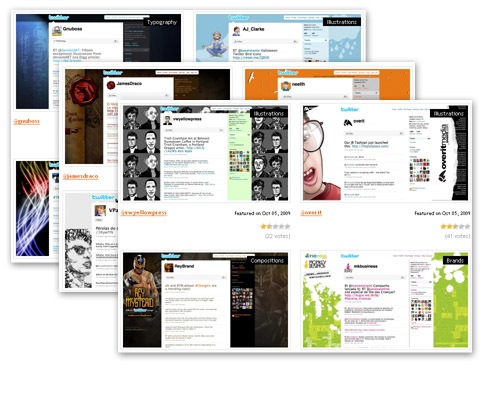
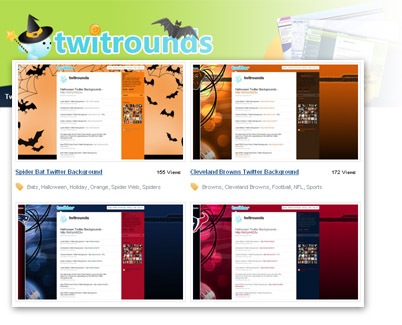
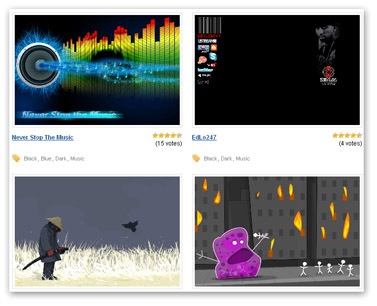
Some really good custom backgrounds for twitter and facebook graphics, While many are paid versions, there is also a section for free twitter backgrounds.
http://www.twitterbackgroundsgallery.com
Their site says “Twitter Backgrounds Gallery is the largest showcase of unique Twitter backgrounds submitted and recommended by Twitter users worldwide.” 1644+ free backgrounds, also don’t miss the resources, top10 and other useful sections
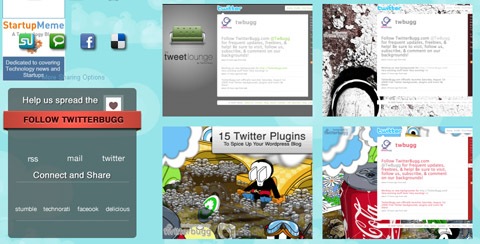
Some good backgrounds for twitter, with easy installation instruction for manual install or auto install tool for people having no idea how to customize their twitter.